

So you have decided to launch a news website. You have picked a niche, you have content ideas — now you need to make the site work, look professional, and start reaching people. This guide walks you through every step from the moment you sign up for NewsPro to the point where your site is indexed by Google and growing an audience.
We will cover each step in the right order: creating your account, the wizard that builds your site in about 30 seconds, the critical settings you must complete before you start publishing, and everything you need to do so Google finds you as early as possible.
Step 1: Create Your Account
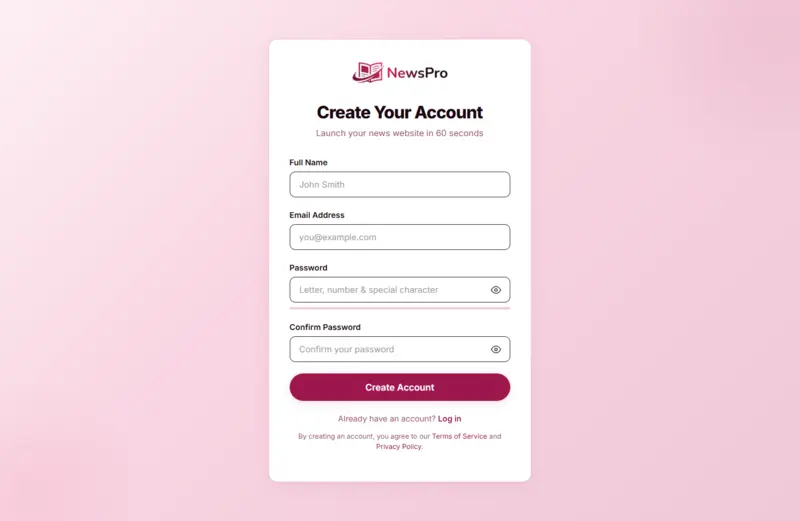
Go to newspro.io and click Sign Up in the navigation, or go directly to newspro.io/signup.
What to fill in:
- Full Name — your name as it will appear on your account
- Email Address — an inbox you actively check; this is where all onboarding emails and important updates will arrive
- Password — at least 8 characters, must include a letter, a number, and a special character.
- Confirm Password — type your password again
Click Create Account. Within seconds you are automatically taken to the site creation wizard — no email confirmation step, no waiting.
Step 2: The Site Creation Wizard — 4 Steps, ~30 Seconds
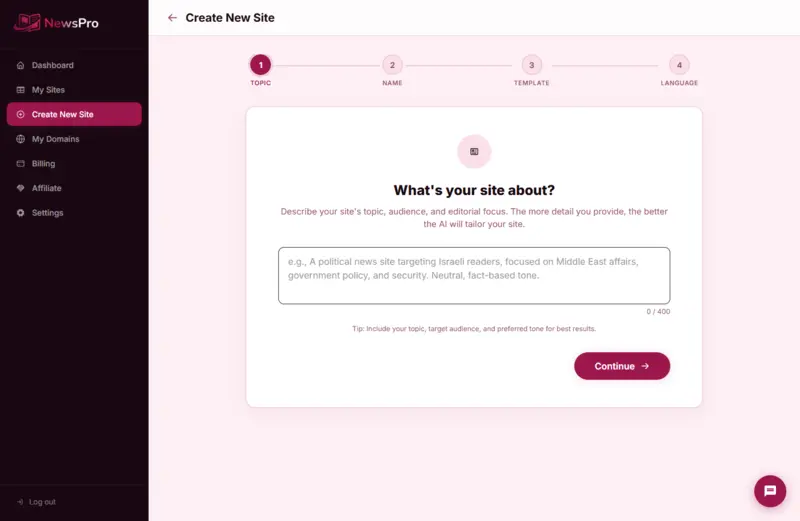
The wizard is what makes NewsPro different. It does not just create a blank site — it uses AI to build a site tailored to your topic: categories, metadata, default pages, contact forms, and more. Everything happens in about 30 seconds.
Step 2.1 — Describe Your Site Topic
This is where the AI starts building for you. Write a free-form description covering what niche or topic the site covers, who your target audience is, and what tone or editorial style you want.
Good description examples:
- "A technology news site in English focused on Israeli tech startups, AI, and the global SaaS industry. Professional and fact-driven tone."
- "Sports news site covering NBA and NFL, targeting American fans aged 18–35. Energetic and opinion-driven."
- "Health and wellness news site covering nutrition, mental health, and medical research. Authoritative but accessible tone."
The more detail you provide, the more accurately the AI will generate your categories, site description, and initial settings. This description is only used at setup — you can change everything later.
Step 2.2 — Choose a Site Name
Type the name for your news site. NewsPro will also suggest names based on your topic description — look for the suggestion chips that appear below the input field.
Tip: Keep it short and memorable. The site name becomes the initial URL slug (your-name.newspro.io), so avoid spaces, special characters, and anything too long.
Step 2.3 — Pick a Template
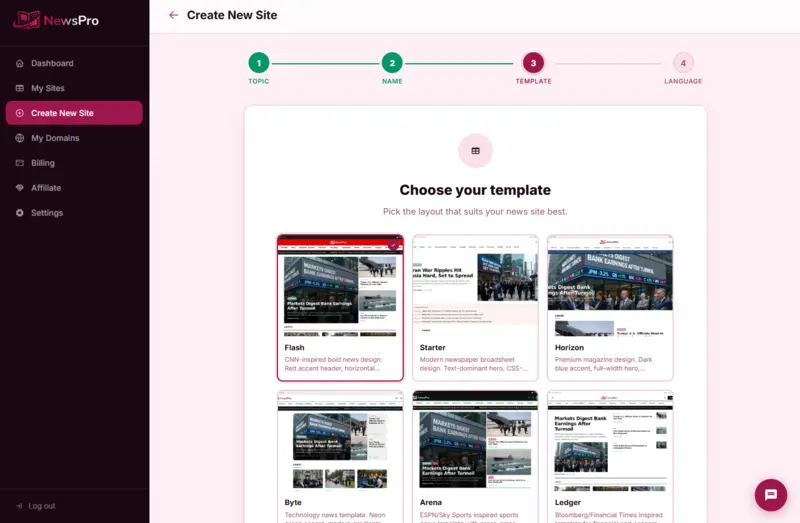
NewsPro offers dozens of design templates, each with a different visual approach. Choose the one that fits your niche best:
- General news: Flash, Arena, Signal — classic editorial layouts, text-heavy hero sections
- Technology: Byte, Pulse — minimal and modern
- Sports: Ignite — bold, image-rich, high energy
- Lifestyle / Food: Saveur, Kitchen, Coastal — warm and visually rich
- Health / Wellness: Tonic, Vita — clean and calm
You can preview each template before selecting. You can change your template at any time from the dashboard, so do not overthink this choice now.
Step 2.4 — Select Your Language
Choose the primary language of your site. NewsPro supports 97 languages — including English, Hebrew, Arabic, Spanish, French, German, Japanese, and more. The dashboard interface, default category names, static pages (About, Privacy Policy, Terms, Contact), and forms are all automatically set up in the language you choose.
Click Launch My Site. The wizard starts building: creating your dedicated database, setting up your dashboard, applying your template and color scheme, configuring your site settings, and setting up your domain. After about 30 seconds, a success screen appears: "Your site is live!"
What Was Just Created Automatically?
Before moving on to settings, here is what NewsPro already built for you:
| What was created | Details |
|---|---|
| Admin dashboard | Full access to all management tools |
| Initial categories | 5–8 categories relevant to your topic, generated by AI |
| Static pages | About, Contact, Privacy Policy, Terms of Use — in your chosen language |
| Contact form | Set up and ready to use |
| Temporary address | yoursite.newspro.io — live immediately |
| Analytics system | Built-in traffic tracking active from day one |
| Mail account | noreply@yoursite.newspro.io for system notifications |
| Free trial | 14 days — no credit card required |
Step 3: The Critical Settings — Do These Before Publishing
As soon as your site is up, enter the dashboard. These are the settings you must complete before you start publishing content. Skipping them means your site will not be indexed properly, will look unbranded, and may miss tracking data from the very start.
3.1 General Settings (Settings → General)
- Time Zone — set this to your local time zone. It affects scheduled publishing, analytics timestamps, and email digest timing. Do not skip it.
- Country — your site country
- Contact Email — the email address that appears in contact inquiries and system notifications
3.2 SEO Settings (Settings → SEO)
- Website Name — appears in Google search cards and in every page title tag
- Website Description — up to 160 characters. Write a clear description that includes your main keywords. This is what Google shows under your site name in search results.
- OG Thumbnail — the image that appears when someone shares a link to your site on Facebook, WhatsApp, X, or LinkedIn. Recommended size: 1200x630 pixels.
- Header Separator — the character between the page name and site name in the title tag (default:
|) - Show in Search Results — make sure this is Enabled. If it is off, Google cannot index your site.
- Google Analytics ID — format:
G-XXXXXXXXXX - Google AdSense ID — if you have an AdSense account
- Social Media Links — add your Facebook, X, YouTube, Instagram, Telegram, and other profile URLs here. They appear in the site footer and are used to build automatic Schema.org markup that Google reads.
3.3 Logo and Favicon (Settings → Manifest)
- Logo (Light) — your logo for light backgrounds (PNG with transparent background)
- Logo (Dark) — your logo for dark mode
- Favicon (32x32 px) — the small icon shown in browser tabs
- Apple Touch Icon (180x180 px) — the icon displayed when someone saves your site to their phone home screen
Do not skip the logo. A site without a logo looks unfinished and hurts credibility immediately.
3.4 URL Structure (Settings → Permalink)
This decision is hard to reverse once you start publishing — changing the URL structure breaks existing links. Choose carefully now:
| Structure | Example | Recommendation |
|---|---|---|
| Plain | /article?p=123 | Not recommended — not SEO-friendly |
| Numeric | /archives/123 | Simple but no keywords in URL |
| Day & Name | /2025/04/16/article-slug | Excellent for news sites — date signals freshness to Google |
| Article Slug | /article-slug | Clean and keyword-rich — great for evergreen content |
For news sites, we recommend Day & Name or Article Slug. Both are SEO-friendly and clear for readers.
Step 4: Set Up Your Categories (Dashboard → Categories)
Categories are the backbone of a news site. The AI created initial categories based on your topic description — now review and refine them: delete categories that do not fit your focus, add any that are missing, and organize into a logical hierarchy (parent category → subcategory). For each category: a clear name with keywords, a short description for SEO, and visibility set to Public.
Step 5: The AI Run — Your Automated Content Engine (Dashboard → AI Run)
This is one of NewsPro's most powerful features. The AI engine can write and publish news articles automatically in your language:
- Writes complete news articles based on your topic and categories
- Sources relevant images for each article
- Sets SEO metadata (title, description, tags) for every article
- Can also generate Breaking News alerts and Shorts
Configure the writing style and translation model under Settings → AI. The AI publishes content automatically, but it does not replace human editorial judgment — review articles for factual accuracy before publishing when needed.
Step 6: Connect a Custom Domain
Path: Customer Portal → My Sites → Manage → Manage Domains
A custom domain is essential for any site that wants to be taken seriously by readers and by Google. You have two options:
Option A — Buy a domain through NewsPro: Click "Buy a Domain", search for your domain, confirm the purchase. The domain is connected and SSL is installed automatically.
Option B — Connect an existing domain: Click "Add Custom Domain", enter your domain name, follow the DNS instructions at your registrar (Namecheap, GoDaddy, Cloudflare), then click "Activate". SSL is installed automatically.
DNS propagation can take up to 24 hours — this is normal.
Step 7: Register with Google Search Console (Critical for SEO)
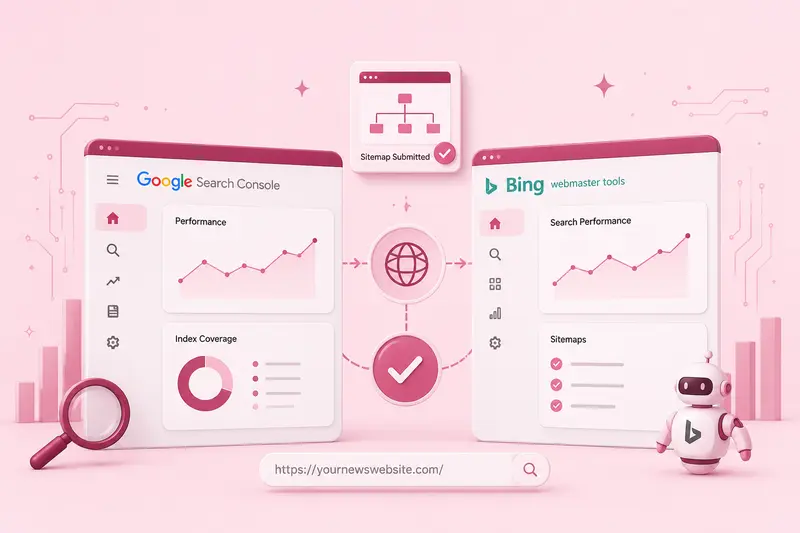
URL: search.google.com/search-console
Without Search Console, Google might not discover your site for weeks. With it, you actively tell Google your site exists and fast-track indexing.
- Click "Add Property" → "URL Prefix" → enter your site URL
- Verify ownership: copy the HTML meta tag → in your dashboard go to Settings → SEO → Header Code and paste it there → click Verify
- Go to Sitemaps → enter
https://your-domain.com/main_sitemap.xml→ Submit
NewsPro generates and updates your sitemap automatically every time you publish. From now on, Google will discover new articles within hours instead of weeks.
Step 8: Register with Bing Webmaster Tools
URL: bing.com/webmasters
Bing is the second-largest search engine and also powers Microsoft News — which can drive significant traffic to news sites. Add your site, verify ownership (import directly from Google Search Console), and submit your sitemap: https://your-domain.com/main_sitemap.xml.
Step 9: Connect Social Media for Automatic Sharing
Path: Dashboard → Settings → Social Media Auto Share
NewsPro can automatically post every new article to all your social platforms the moment it is published. Supported platforms: X (Twitter), Facebook, Instagram, Threads, Telegram, Bluesky, LinkedIn, Pinterest, Reddit, Tumblr.
For each platform, enter your Client ID and Client Secret, set a Redirect URI, authorize the connection, and create a post template using dynamic tags like {article_title}, {article_link}, and {article_category}.
Step 10: Configure SMTP Email
Path: Dashboard → Settings → Emails
To send newsletters and notifications to your subscribers, configure SMTP: Host (e.g. smtp.gmail.com or smtp.mailgun.org), Port (465 for SSL or 587 for STARTTLS), Username, and Password. You can also set up automated Email Digests — daily, weekly, or monthly content summaries sent to your subscriber list.
Professional Tips for Growing a News Site
Consistency beats volume
Sites that publish 3–5 articles per week, consistently, see up to 3x more returning visitors than sites that publish 20 articles one week and then go quiet. Set a realistic publishing schedule and stick to it.
SEO in every article
- Title — contains your main keyword
- Meta description — 120–160 characters, engaging and keyword-rich
- Subheadings (H2/H3) — include secondary keywords
- Image — has descriptive alt text
Internal linking
Link between your own articles. Internal links help Google understand your site structure and keep readers on your site longer.
One platform first
Do not try to be everywhere on social media at once. Pick the one platform where your target audience is most active, build a strong presence there, then expand.
Weekly analytics review
Check your dashboard analytics at least once a week: which articles are getting the most views, where readers are coming from, and how long they are staying. Use this data to improve your content strategy over time.
Your First Week — A Suggested Timeline
Day 1 — Core settings: Complete General, SEO, Manifest, and Permalink settings. Review and edit your AI-generated categories.
Day 2 — Domain and search: Connect a custom domain. Register with Google Search Console and submit your sitemap. Register with Bing Webmaster Tools.
Day 3 — Content and social: Publish your first 3–5 articles. Connect social media platforms for automatic sharing. Configure SMTP email.
Days 4–7 — Full operation: Configure the AI Run for automated publishing. Review your first analytics data and adjust your content plan.
Your Launch Checklist
- Signed up for NewsPro
- Described my site topic in detail in the wizard
- Chose a site name, template, and language
- Completed General, SEO, Manifest, and Permalink settings
- Reviewed and edited my AI-generated categories
- Connected a custom domain
- Registered with Google Search Console and submitted my sitemap
- Registered with Bing Webmaster Tools
- Published my first 3–5 articles
- Connected social media platforms for automatic sharing
- Configured SMTP for email sending
- Configured the AI Run for automated publishing


